



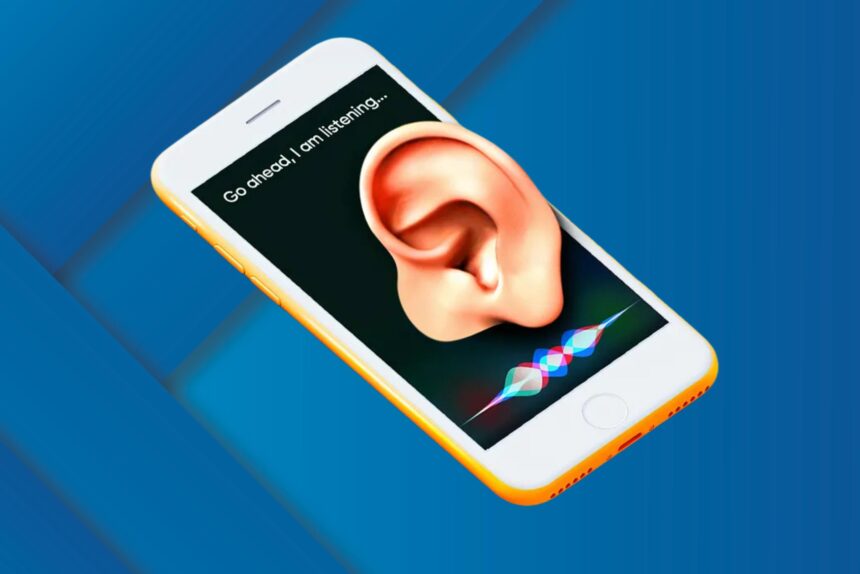
If you’ve ever wondered how to stop Google from listening to you, you’re not alone. With smart devices, voice assistants, and Google apps integrated into almost every part of our digital lives, it’s easy to feel like your conversations are being monitored.
While Google asserts that it only listens when you activate its voice assistant, multiple studies and user experiences suggest that it can capture audio snippets for improving its services, targeted ads, and AI-based features. The good news is that you can take steps to regain control over your privacy.
This guide explains exactly how to stop Google from listening to you, covering everything from device settings to account management, with actionable steps that even non-tech users can follow.
Understanding How Google Listens
Before diving into the steps, it’s important to understand how Google listens. Google’s ecosystem includes devices like:
- Google Home / Nest speakers
- Android smartphones with Google Assistant
- Chromebooks and smart displays
- Google apps such as Google Maps and YouTube
These devices and apps use voice recognition to improve services. By default, Google stores voice commands in your account to train its AI, improve speech recognition, and, in some cases, provide personalised ads.
While this can enhance your experience, it also means sensitive conversations could be recorded unintentionally. Knowing this is the first step in taking control of your privacy.
Step 1: Manage Voice & Audio Activity in Your Google Account
Google records and stores voice activity through your Google Account. To manage or delete this data:
- Go to Google My Activity.
- Click Activity controls in the left menu.
- Find Voice & Audio Activity. Toggle it off.
- You can also review past recordings and delete them individually or in bulk.
By disabling this setting, Google will no longer save your voice inputs for future improvements or ad targeting.
Step 2: Disable “Hey Google” Detection on Devices
If you use devices like Google Home, Nest, or an Android phone, they actively listen for the wake phrase “Hey Google”. To stop this:
- Open the Google Home app or Google Assistant settings on your phone.
- Navigate to Voice Match.
- Turn off Hey Google detection.
After doing this, your device won’t respond to the wake phrase and will stop passively listening for commands.
Step 3: Manage Microphone Permissions
Google apps often request microphone access. Limiting these permissions reduces accidental listening:
- Android:
- Go to Settings > Apps > Google.
- Tap Permissions.
- Select Microphone and choose Deny.
- iOS:
- Go to Settings > Privacy > Microphone.
- Toggle off access for Google apps.
This ensures apps can’t record audio unless you explicitly allow it.
Step 4: Turn Off Personalized Ads
Even without active listening, Google can use your data for targeted advertising. Turning off ad personalisation reduces privacy risk:
- Visit Google Ad Settings.
- Toggle Ad Personalisation off.
- You can also review and reset interests to prevent tracking.
While this won’t stop all tracking, it minimises how your data is used for advertising.
Step 5: Review Third-Party App Access
Some apps connected to your Google Account can access audio data:
- Go to Google Account > Security > Third-party apps with account access.
- Review all connected apps.
- Remove permissions for apps that don’t need access.
This prevents other services from inadvertently recording or storing your voice.
Step 6: Use a Physical Privacy Approach
For ultimate peace of mind:
- Mute or cover microphones on smart devices when not in use.
- Consider smart plugs for speakers to cut power entirely.
- Regularly audit devices in your home that have microphones or cameras.
Physical controls are a simple but highly effective way to regain privacy.
Step 7: Consider Alternative Apps and Devices
If privacy is a priority, look for:
- Voice assistants with local processing only (no cloud storage)
- Search engines like DuckDuckGo instead of Google
- Messaging apps with end-to-end encryption
Reducing reliance on Google’s ecosystem limits exposure to unintended listening.
Final Thoughts
Knowing how to stop Google from listening to you is critical in today’s connected world. By taking control of account settings, app permissions, device configurations, and physical microphones, you can regain your privacy without sacrificing convenience.
Remember, technology is designed to be helpful but it should not come at the cost of your personal space. Regular audits, conscious app choices, and using the steps above will keep your conversations private and secure.
5 FAQs on How to Stop Google from Listening to You
Is Google really listening to my conversations?
Google devices and apps are designed to respond to wake phrases like “Hey Google.” While the company says it only records audio when activated, some audio snippets may be stored for service improvement and ad targeting.
How can I check what Google has recorded?
Visit Google My Activity and review your Voice & Audio Activity. You can listen to, delete, or manage stored recordings.
Can I completely stop Google from listening?
Yes. You can disable Voice & Audio Activity in your account, turn off “Hey Google” detection, and remove microphone permissions from apps and devices.
Will turning off voice tracking affect my Google Assistant experience?
Disabling listening features may limit hands-free voice commands and personalised recommendations. However, it protects your privacy while still allowing manual searches and actions.
Are there alternatives to Google that don’t listen to users?
Yes. Consider privacy-focused search engines like DuckDuckGo, voice assistants with local processing only, and messaging apps with end-to-end encryption to reduce your exposure.
——————-
Bookmark Techparley.com for the most insightful technology news from the African continent.
Follow us on Twitter @Techparleynews, on Facebook at Techparley Africa, on LinkedIn at Techparley Africa, or on Instagram at Techparleynews.